Moving from iCloud to Google
For years now I have been using Google Apps for business, but being an iPhone user I always kept iCloud for all my personal emails, contacts and calendars. It just worked for me, well kind of worked. However I got fed up with it kinda working decided that enough was enough and I would go ahead and move EVERYTHING to Google’s cloud services.
I kind of knew what I needed to do and there are plenty of useful tips around but I thought I would share how and why I changed at each stage.
Get a Google Account
It’s unlikely you don’t already have a Google account of some sort already, YouTube is now a Google account Google Plus, it’s all the same thing. If you don’t have an account already head over to the signup page, you can either setup your Gmail address at signup or do it later. For the purposes of my article, I didn’t have a Gmail account/address but did have a Google account.

Activate Gmail
If you didn’t create a Gmail account when you signed up now’s the time. Login to your Google account and try visiting Gmail. If you don’t already have a Gmail account it will ask you to create one. Go ahead and get it done.
You now have Email, Contacts and Calendars all available to you inside you Gmail account. Now all we need to do is get your device talking to it and migrate all your iCloud stuff across! Simple.
You might also want to ensure you have a Google Plus account setup, even if you don’t plan on using it much or sharing anything it’s useful! head over to Google+ and follow the instructions to get setup.
Device Setup
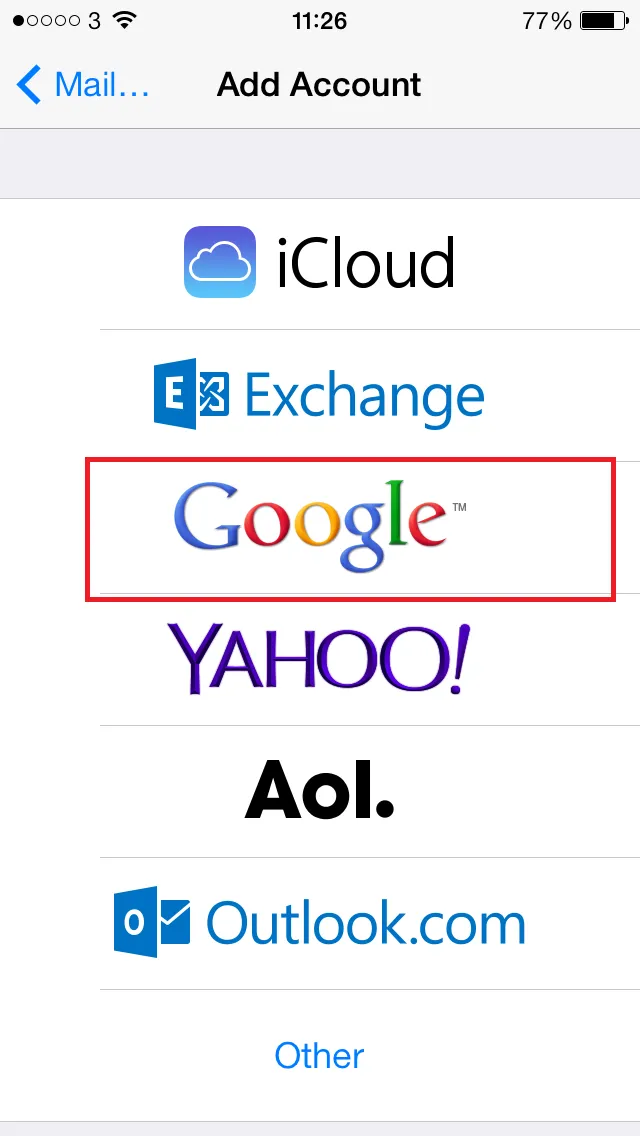
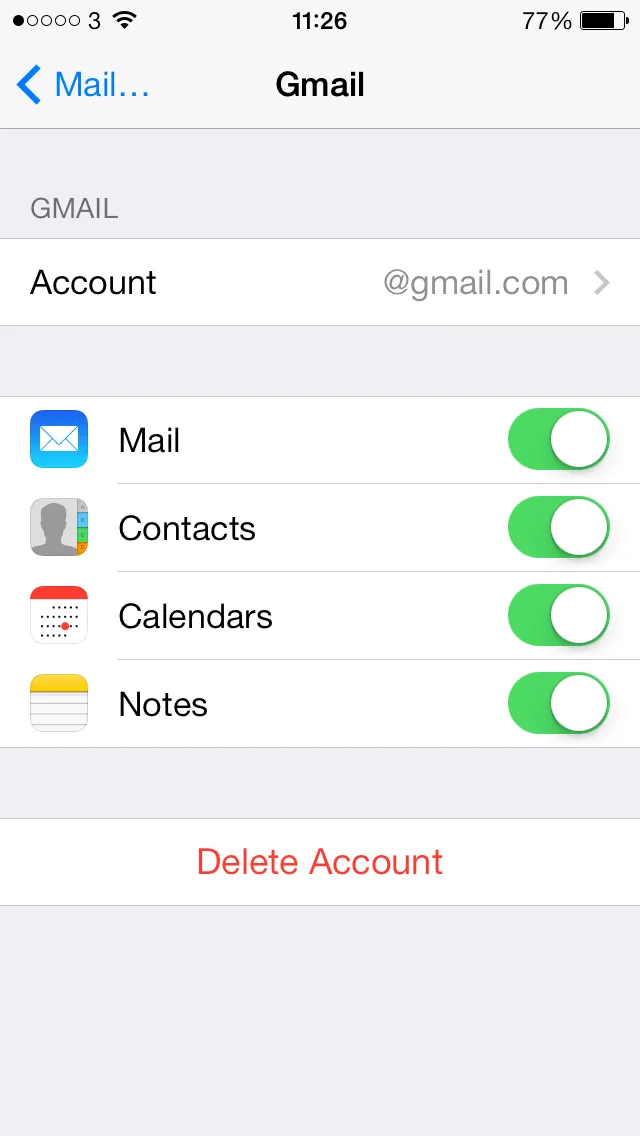
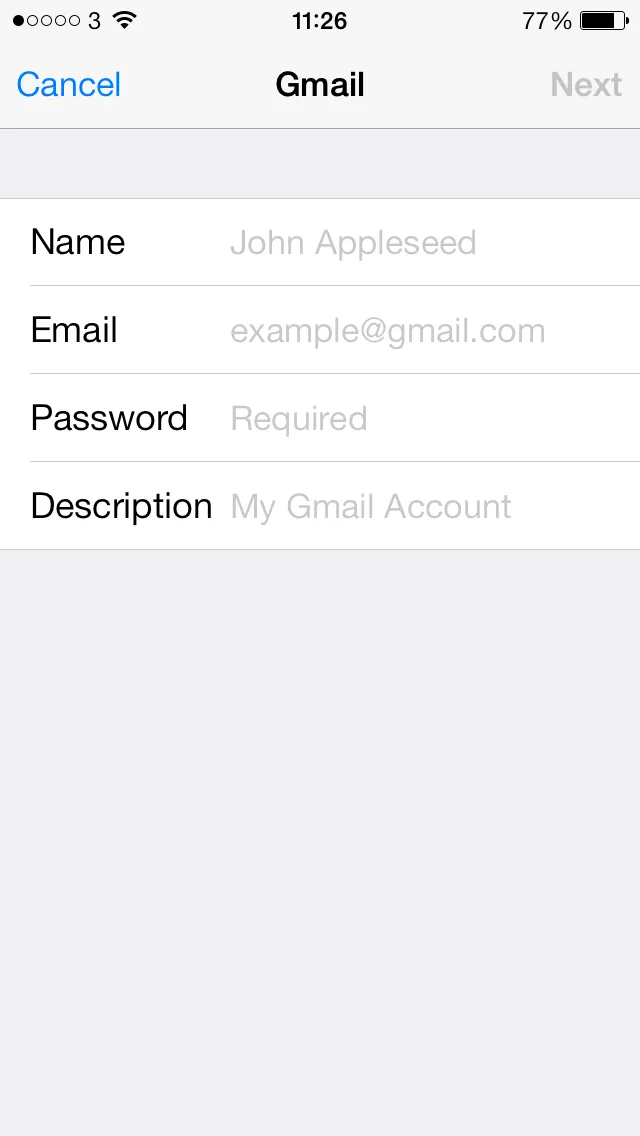
Firstly on your iPhone/iPad goto Settings->Mail, Contacts, Calendars->Add Account. You then want to select Google. It’s fairly easy, enter your new Gmail email address, password etc and your off. Once it’s authenticated you want to make you have everything enabled. You can see more in the screenshots below.
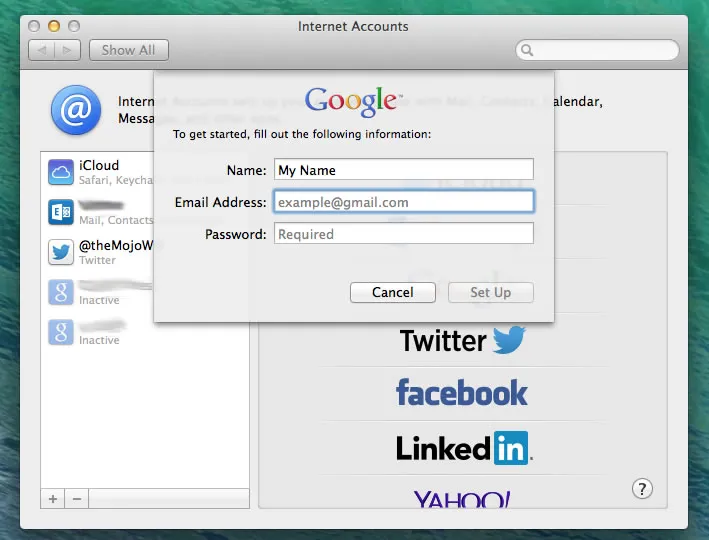
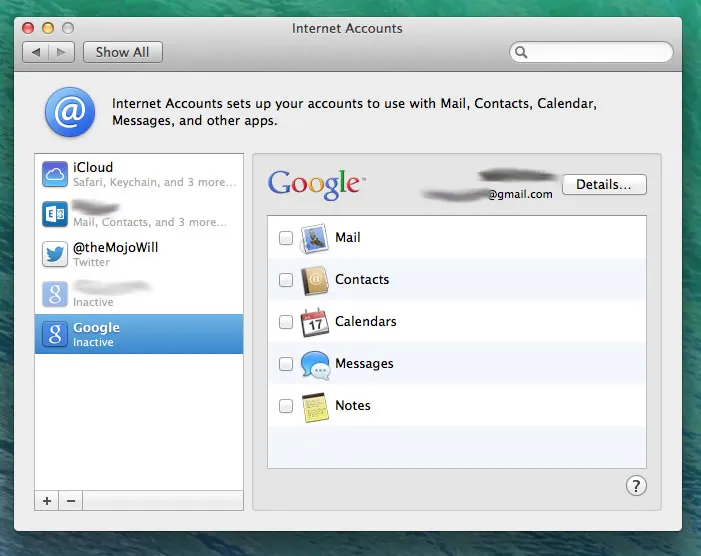
Now if you’re a Mac user you probably want to add the account to your Mac. (If you’re a Windows user, don’t bother. Outlook is junk and you’re better off sticking to the web interface for Google anyway.) Go to System Preferences and click on Internet Accounts. In the right hand window simply click Google to add a new account, enter your name, email address and password and you’re all set. OS X will automatically add the account to Mail, Contacts and Calendar for you.
You should now have your Google account set up on your devices, now that wasn’t too painful was it?
(Technically Google want you to use their Gmail app for email and use CardDAV for Contacts and Calendar, if you want to do this then fine full documentation can be found here. I didn’t do it as ultimately I was moving away from iOS and this was merely an intermediate step for me)
Migrating Contacts
This is the easiest so I’m going to start here. You have 2 ways of doing this:
On your Mac
Open up the Contacts app, and you should see all your contacts sat under your iCloud account. Simply select all your contacts and then drag them to your Google account that will in the left sidebar. After a bit of syncing you should then have 2 copies of each contact card. 1 in iCloud and 1 in Google.
No Mac? No Problem
Open up iCloud in your browser, login and go to Contacts. You want to select all your contacts (Shift clicky). Now in the bottom left corner you will see a cog, click it and hit Export vCard. This will download a file to your local machine. Once you have the vCard archive downloaded login to Gmail and select Contacts from the drop-down on the left hand side (just above the red compose button). Once in your contacts you want to click more (at the top of the main window) and select Import. Select the vCard archive you just downloaded from iCloud and just like magic your contacts will appear.
Now is the perfect time to have a little clean up! Google also has a nice find & merge duplicates function. You will also notice if you have friends in your contacts with Google accounts and you have their email addresses additional information will be pulled in.
Contacts, Final Steps
So the last thing to do is return to your devices and uncheck Contacts in your iCloud account settings, it will also prompt you if you want to remove contacts from your device. It’s safe to do this as you now have another copy in your Google account, and they are still backed up in the iCloud cloud should the worst happen. Once you have removed iCloud contacts from all your devices any changes you make will be synced with Google and pushed to all your devices. Ensure Google is set as your default for Contacts if you have multiple other accounts (if you want to).
Migrating Calendars
Now this is a little bit more tricky, but not impossible. This is the same process for each of your calendars if you have multiple. Firstly head over to Google Calendar and get it all set-up how you want it. Next make sure you have your calendars created to match iCloud. You can have as many calendars as you like and you can also subscribe to multiple read-only calendars. (Facebook events, Public Holidays etc).

Now head back over to iCloud in the browser and this time login to your calendar. In the left hand column next to each calendar name there is a little sharing icon. Click this. You need to temporarily make each calendar public. Don’t worry people can only access it if you give them the unique URL. Once you have made the calendar public you will be given the unique URL. Copy this and paste it into a browser but don’t hit enter just yet! Change the start of the URL from webcal to http then hit enter. It should download an ICS file.
Now with your shiny new ICS file head back over to Google Calendar and now click the little arrow next to Other Calendars in the left hand menu. You’ll want to select import calendar, select your downloaded ICS file and then specify which Google calendar you want to import the ICS into (why we set up our calendars earlier!). Repeat this process for all your calendars and you’re done.
Calendars, Final Steps
Once you have imported all your calendars into Google return to your devices and like we did for contacts remove calendar from your iCloud settings. You will be left with just your Google calendar!
Migrating Email
Now this really is personal preference as to how much of this you do. Here’s what I did. I opened up Mail on my Mac, I organise all my emails into folders one for Amazon, one for the house, one for bills etc. Firstly I dragged the folder from iCloud to Gmail inside mail, after a little while (depending on the amount of emails) I had a new folder inside of Gmail with all my old emails. I then took a look inside the folder and made sure I updated my email address with any accounts related to that folder. For example, I copied the Amazon folder then headed over to Amazon and updated my email address. Once I had copied the folder across and updated my email address on the account I removed the folder (or mailbox as Apple mail likes to call it) from iCloud.
Now this process takes a little while but was worth it, I have updated pretty much all my online accounts to use my new Gmail address and have all my old emails (about 10,000) on Gmail. Once you have moved all your emails across and have updated as many of your accounts as you can think of the final thing to do is redirect your iCloud account. Gmail has a nice little feature where you can get email from other accounts, unfortunately it only supports POP which iCloud doesn’t support any more so the only way to make sure any emails that are sent to your iCloud account get to you is to forward them. Login to your iCloud mail in the browser and then click the cog in bottom left corner of the screen. Select preferences and you should see the forwarding options. Tick the box to enable forwarding and then enter your new Gmail address, I also clicked to delete emails once they had been forwarded but this is personal preference.
Email, Final Steps
Once you have your forwarding setup it might be worth a quick test, so email yourself from your Gmail account to your iCloud account and you should receive the email on your Gmail account…..confusing? Once you’re confident email is being forwarded it’s time to go back into your iCloud account and uncheck email. You should now have iCloud email removed from all your devices!
Final Thoughts
 So you’ve now got your Contacts, Calendars and Email all on the wizz-bang Google Cloud. You get a few nice extras as well that you don’t get with iCloud. Google Drive gives you 15Gb of free space in the cloud to store whatever you want along with a really good online document creator for Word, Excel and Powerpoint. You can install the desktop app and sync documents between your local machine and the Google cloud. It’s basically Dropbox, but you get more free space and document editors. Any images you add to Google Drive will automatically be added to the Photos app on Google+ however don’t worry they are still private unless you choose to share them. Also you have a single account (which some might argue is a bad thing) that you can use for YouTube, Email, Document sharing and logging into other sites. A lot of sites are now offering login with Google account functionality.
The biggest advantage is that you now have a rock solid cloud infrastructure for your stuff, plus it’s device agnostic you can use whatever you like and still get the same experience! I’d love to hear your thoughts on it, I’m super happy with my new Google world and don’t miss iCloud at all.
Filed under Geek. No comments, on purpose.